I Dropped AeroSpace for Hammerspoon: Shortcuts to Jump Between Apps on macOS
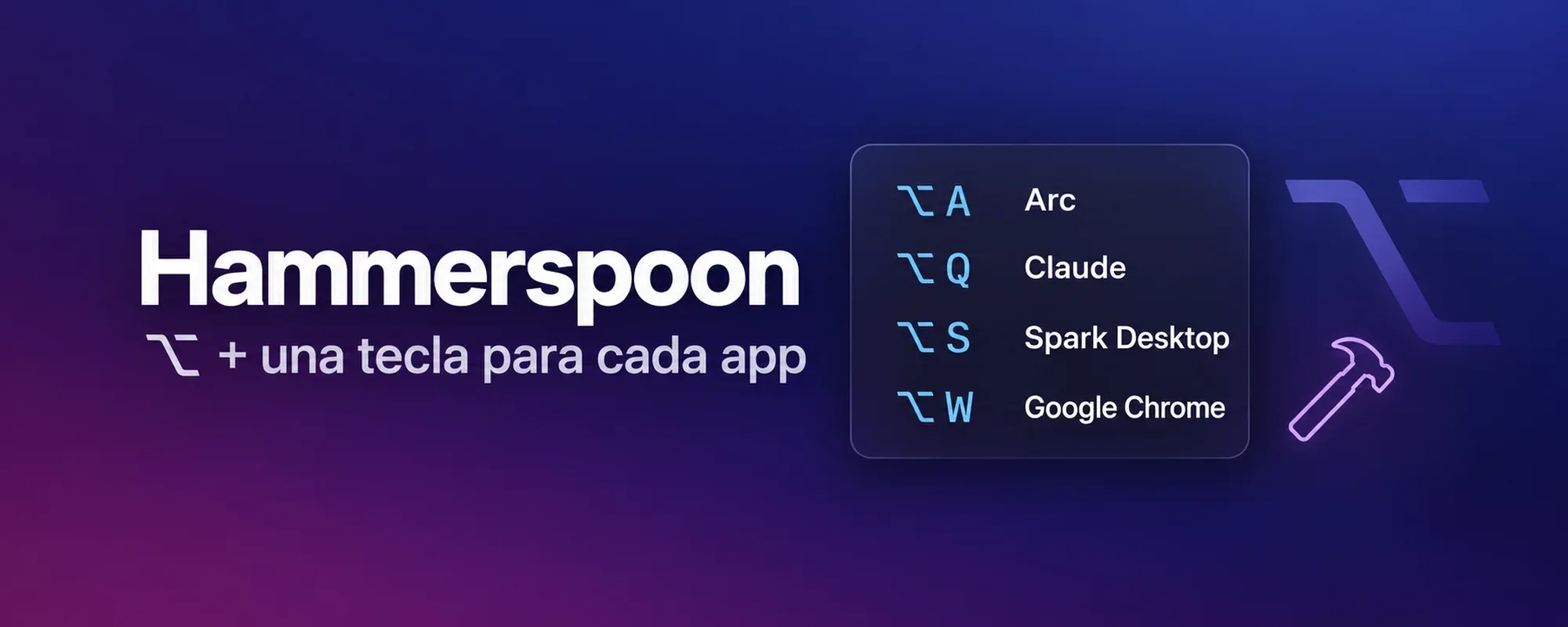
I used AeroSpace on my Mac for quite a while.
If you don’t know it, it’s an i3-style tiling window manager: it has its own virtual desktops, places windows side by side on its own, and lets you jump between desktops with the keyboard. ⌥A, ⌥S, ⌥D… Alongside it I had SketchyBar for the top bar and borders to highlight the active window.
On paper, wonderful. Day to day, not so much.
My problem with AeroSpace
AeroSpace is very rigid. On the ultrawide monitor it works well, because two or three windows fit on each desktop. But on the laptop, only one app fits per desktop.
So I ended up assigning one app to each desktop. It also helped me remember where everything was.
That’s when I realized what I was really using: pressing ⌥ + a letter to go to a specific app. The desktops were just the way to get there, and on the laptop I wasn’t even taking advantage of the tiling.
So I turned all three off.
What I wanted
Something very simple:
- ⌥ + a key takes me to the assigned app.
- If the app is behind other windows or minimized, it brings it to the front.
- If it’s closed, it opens it.
And all of that without changing how macOS desktops work. Windows stay wherever I put them, and the shortcut takes me to the app wherever it is.
Several tools can do this (Raycast lets you assign a shortcut to each app, rcmd does it with the right ⌘ key…), but I ended up with Hammerspoon, and it surprised me quite a bit.
What Hammerspoon is
Hammerspoon is an open source app that acts as a bridge between macOS and a Lua engine. You write a script in ~/.hammerspoon/init.lua, and that script can control almost any part of the system.
It has some history. Steven Degutis built a chain of Mac automation projects: Zephyros (Ruby), Phoenix (JavaScript), Hydra (Lua) and, finally, Mjolnir. Mjolnir aimed to be a minimal core with the extensions kept outside, installed through a Lua package manager. In 2014, a group of users forked it to have everything integrated into the app itself, and that’s how Hammerspoon was born (Thor’s hammer, Mjolnir, plus the spoon from the fork).
Twelve years later it’s still active, with more than 16,000 stars on GitHub, version 1.1.1 released in February 2026 and the latest commit in July.
Freshly installed, it does nothing. Everything depends on what you put in the script. But the pieces it ships with go a long way:
- Keyboard: global shortcuts, key remapping, listening to any keypress.
- Windows: moving and resizing them, sending them to another monitor, saving layouts.
- Menu bar: your own icons with menus, or ones that show live data.
- System events: changing Wi-Fi, plugging in a monitor or a USB device, waking from sleep, opening an app…
- Interface: alerts, Spotlight-style pickers, canvases to draw whatever you want on top of everything.
- Audio and display: switching the audio output, muting the mic, brightness.
- Everything else: running shell commands, calling APIs, starting a local HTTP server, running AppleScript.
On top of that, the community shares ready-to-use plugins, which here are called Spoons.
What it can’t do is go beyond what macOS exposes. For example, it can’t remove the animation when switching desktops in macOS.
What I built
1. ⌥ + a key for each app
The base is just a few lines. Hammerspoon has a function, launchOrFocus, that does exactly what I wanted: it opens the app if it’s closed and brings it to the front if it’s already open.
hs.hotkey.bind({ "alt" }, "q", function()
  hs.application.launchOrFocus("Claude")
end)
In my case, I look apps up by their bundle ID (com.anthropic.claudefordesktop, com.google.Chrome…), which is more reliable than the name.
Right now I have just a few, because I’m getting started:
- ⌥Q → Claude
- ⌥W → Chrome
- ⌥A → Arc
- ⌥S → Spark
I only use letters on purpose. On the Spanish keyboard, ⌥ + a number types characters I need (⌥2 is @, ⌥3 is #), and I don’t want to lose them.
2. A menu bar item to manage them
I didn’t want to edit code every time I add an app. So the shortcuts live in a JSON file (~/.hammerspoon/apps.json), and there’s a ⌥ icon in the menu bar to manage them (the UI is in Spanish, but you’ll get the idea):
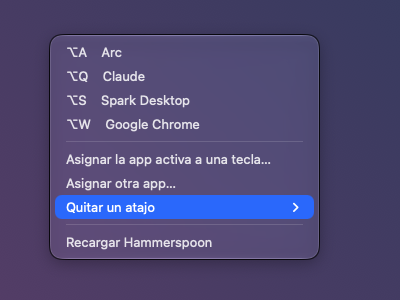
- The list at the top is the cheat sheet of what I have assigned, and clicking a line also opens the app.
- Assign the active app to a key… is what I use most: I’m in an app, I open the menu, type the letter and that’s it.
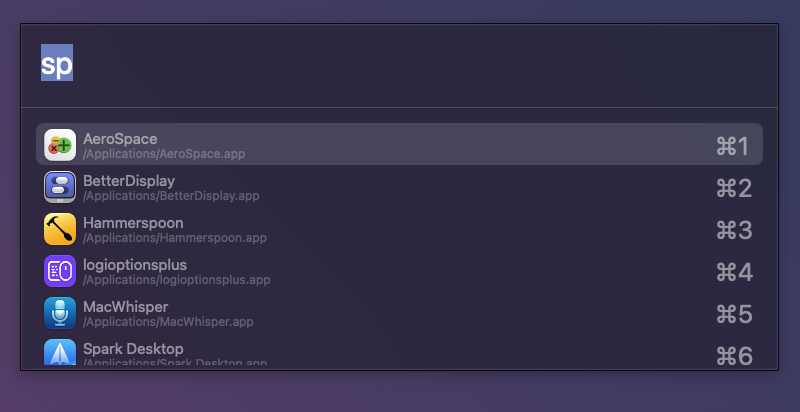
- Assign another app… opens a picker with every installed app, for the ones I don’t have open:
- Remove a shortcut does what it says.
Changes apply instantly, without restarting anything.
3. Hold ⌥ to see the cheat sheet
This is my favorite part. While I learn the shortcuts, if I hold ⌥ for a moment without pressing another key, a panel shows up in the middle of the screen with all of them:
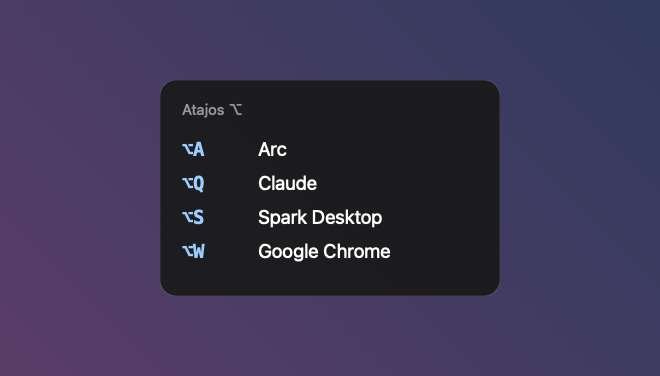
It disappears when I release ⌥. If I press ⌥Q quickly, it doesn’t even show up, and typing an @ doesn’t trigger it either.
Under the hood, it’s three Hammerspoon pieces:
- an
eventtapthat listens for when I press and release modifiers, - a 0.4-second timer that gets cancelled if I release or press another key,
- a
canvas, a borderless window on top of everything, where the rows are drawn from the same JSON.
To listen to the keyboard, Hammerspoon needs the Accessibility permission. If macOS asks for it and it already shows as enabled in Settings, reset it with tccutil reset Accessibility org.hammerspoon.Hammerspoon, grant it again and restart Hammerspoon.
Once I know them by heart, I’ll turn it off. Or not, because it’s pretty cool.
I didn’t write a single line of Lua
An agent wrote all of this. I kept telling Claude Code what I wanted (first the shortcuts, then the menu, then the cheat sheet), and at each step it wrote the code, reloaded Hammerspoon from the terminal and checked that it loaded without errors.
It even took the screenshots for this article, also with Hammerspoon. So that my windows and desktop wouldn’t show up, it drew a canvas with a gradient right under what it wanted to capture, captured that area and then removed it. It’s another use of the same piece that draws the cheat sheet.
Until now, having to configure Hammerspoon in Lua was a barrier: you had to learn its API, look for examples and fight with the details. Now it’s enough to explain to the agent what you want.
I already have a few ideas noted down for what’s next: a recording mode that turns on Do Not Disturb and closes the apps that get in the way, a muted-mic indicator during calls, the status of my tasks in the menu bar…
If you use a Mac and have never tried Hammerspoon, give it a shot. And if Lua puts you off, ask your agent to do it.